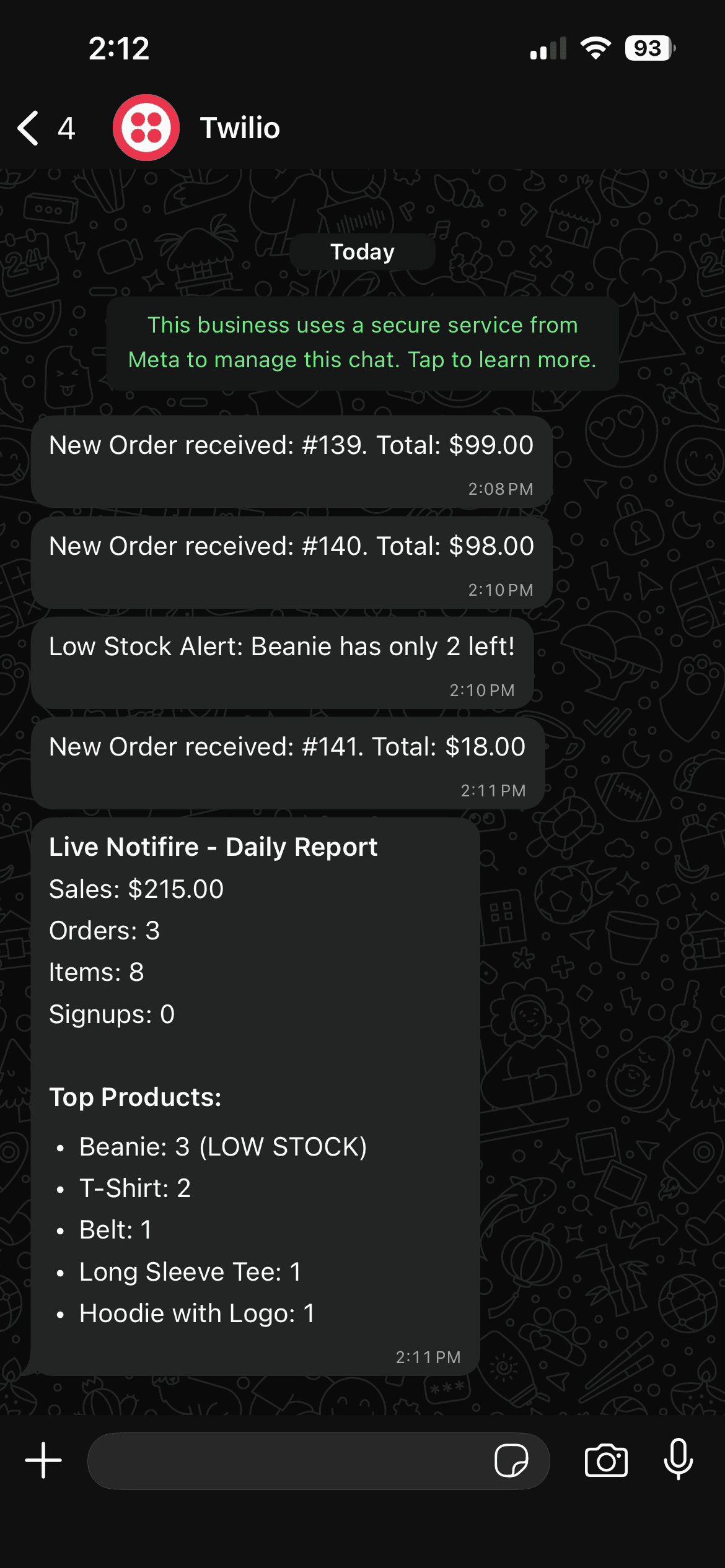
How to Set Up WhatsApp Notifications ?
LiveNotifire supports WhatsApp notifications using both the Twilio WhatsApp Sandbox and production WhatsApp numbers.
Follow the steps below to complete the setup:
Setup Steps
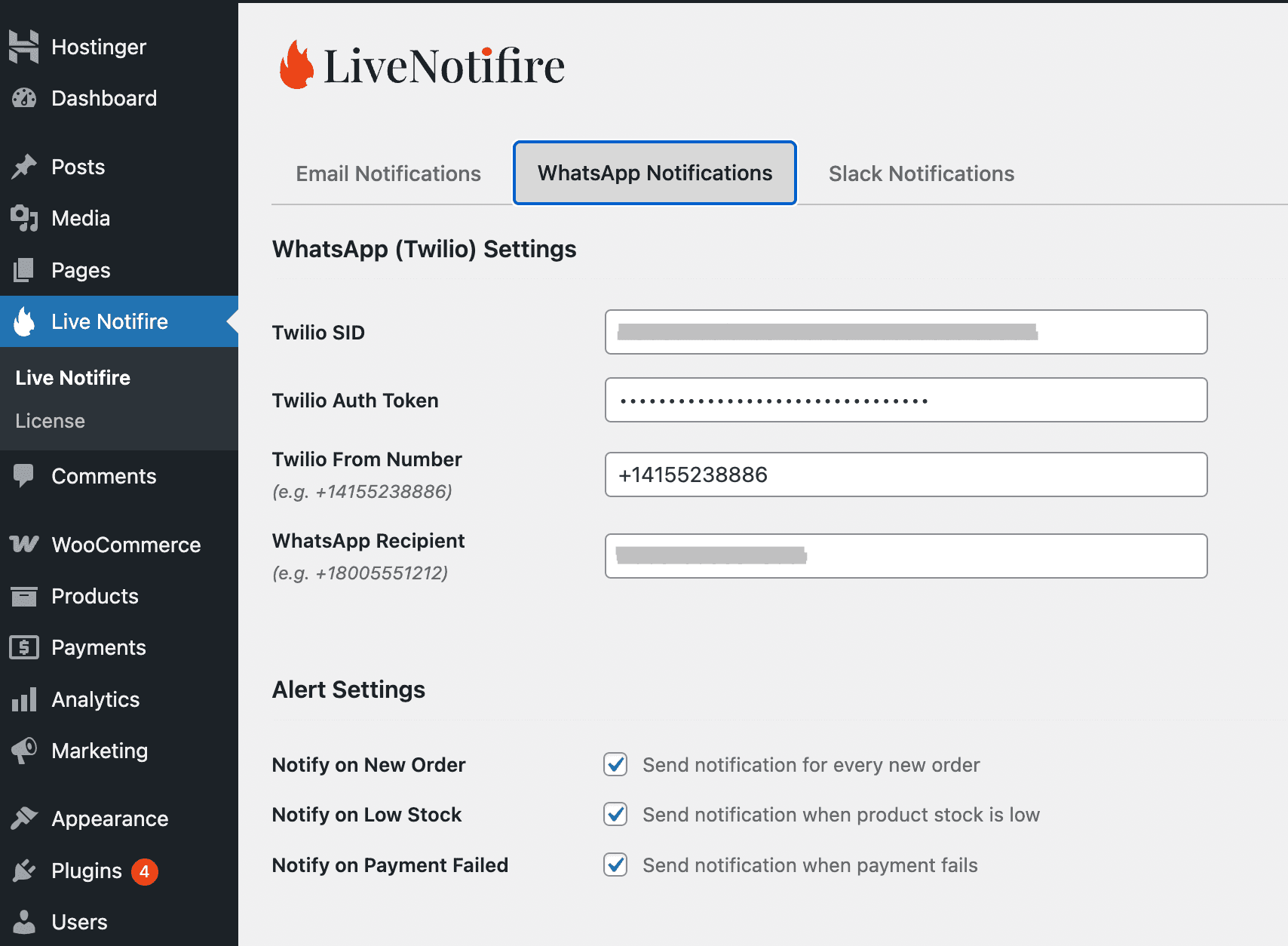
Open WhatsApp Notifications Tab
Go to the WhatsApp Notifications tab in LiveNotifire.
Copy Twilio Credentials
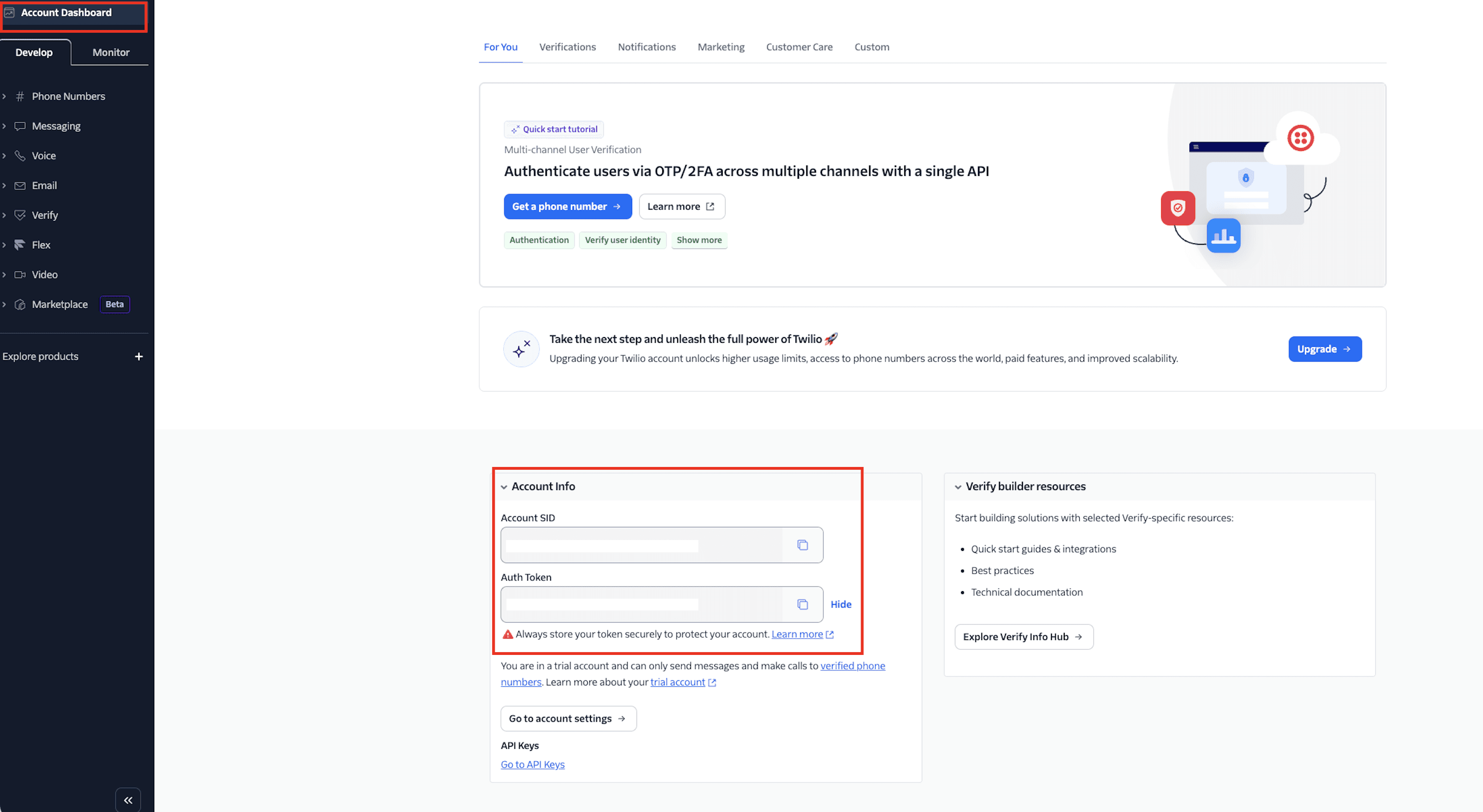
Copy your Twilio Account SID and Auth Token and paste them into the WhatsApp (Twilio) Settings fields in LiveNotifire.
If you don't have a Twilio account yet, create one using the WhatsApp channel setup on Twilio (opens in a new tab).
You can find your Account SID and Auth Token in the Twilio Account Dashboard → General Settings.
Enter the From Number
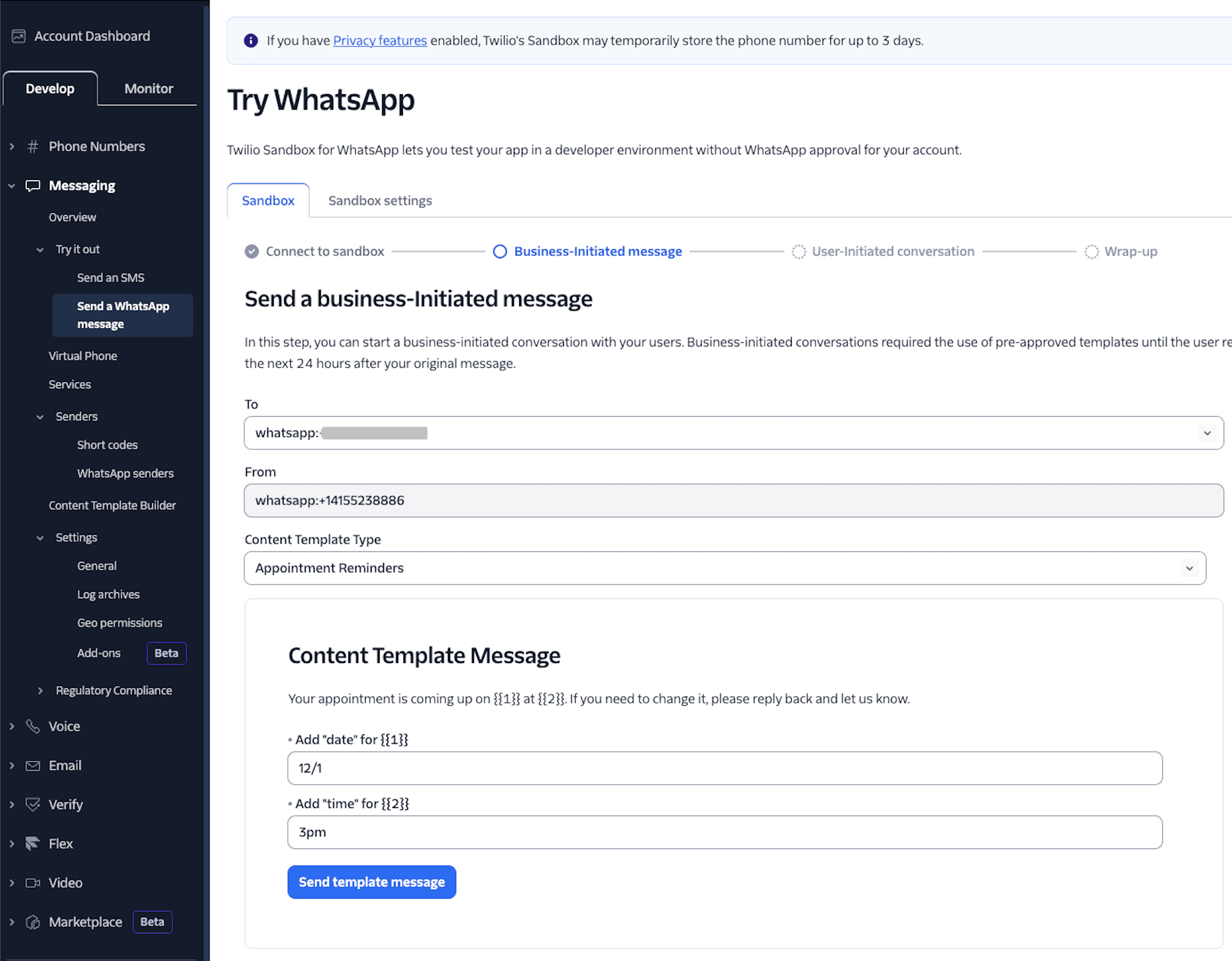
Enter the Twilio From Number (WhatsApp-enabled).
Enter the Recipient Number
Enter the WhatsApp Recipient Number where notifications should be delivered.
Get your From & WhatsApp Recipient number from Twilio Console (opens in a new tab).
Enable Notification Events
Enable the notification events you want to receive:
- Notify on New Order
- Notify on Low Stock / No Stock
- Notify on Payment Failed
Save Changes
Click Save Changes to apply your settings.
What Happens Next
Once enabled, LiveNotifire will send instant WhatsApp notifications whenever:
- A new order is placed
- Product stock becomes low or goes out of stock
- A payment attempt fails